Volume control
In group calls, PlanetKit controls peer volume in a number of ways. Each control method affects each other. This page describes how to control peer volume appropriately.
| Supported call type | Minimum SDK version |
|---|---|
| Group call (conference) | PlanetKit 3.6 |
Overview
There are four methods to control volume during a group call.
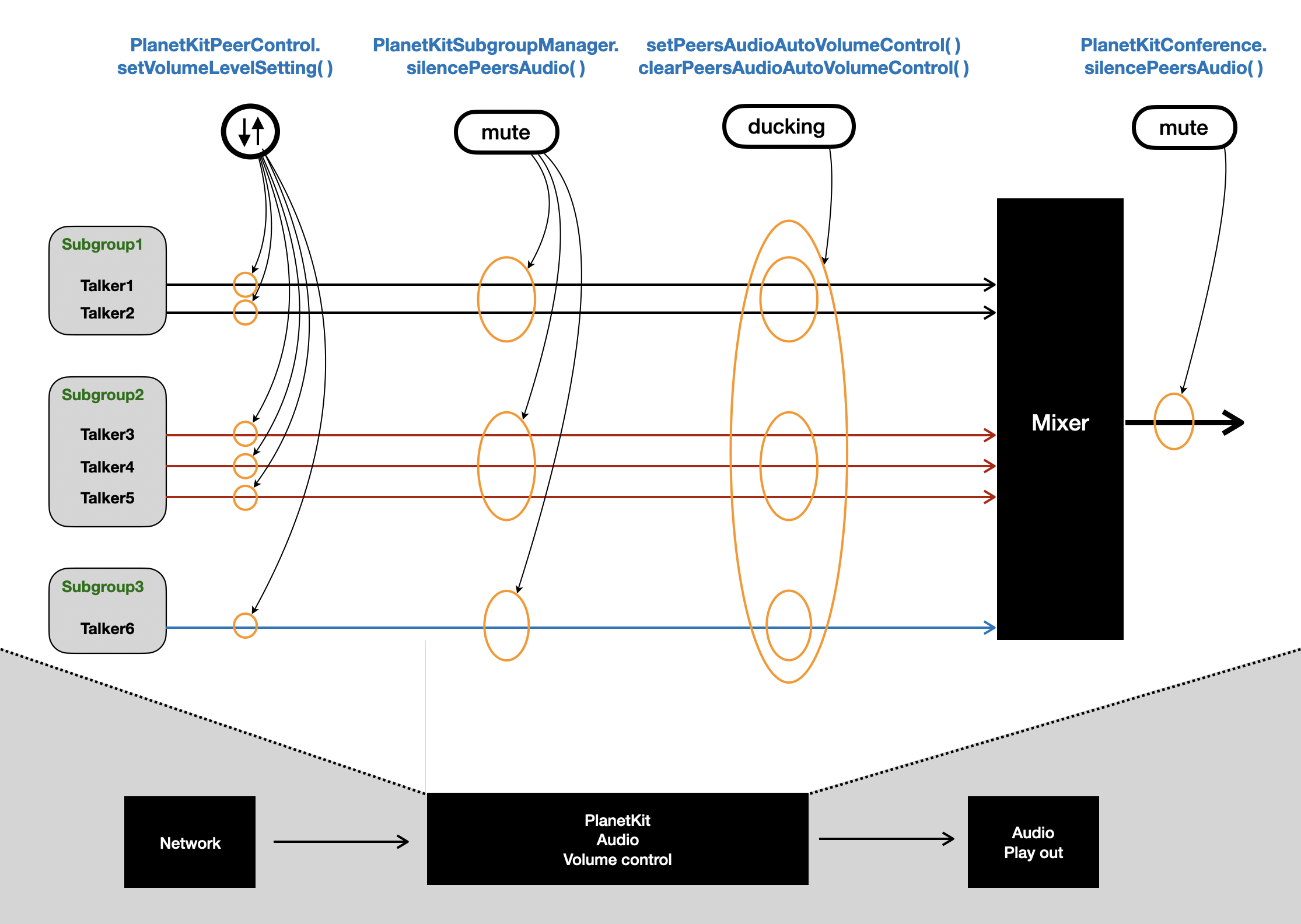
The four methods are applied in sequential order, and the control applied at an earlier stage influences the control applied at subsequent stages.
1. Peer volume control
Applications can control volume of a specific peer.
2. Subgroup silence setting
Applications can silence all audio of a specific subgroup.
3. Auto volume control to listen to focused audio
PlanetKit allows applications to create a focus list and listen to focused audio. PlanetKit decreases the audio volume of subgroups that are not on the focus list when a participant in the focused subgroup speaks. Volume reduction is not performed unless someone in the focused subgroup is speaking.
4. Mixed audio silence setting
Applications can silence all audio.
How to use volume control APIs
This section describes how to use APIs for each volume control method with sample code.
Peer volume control
To control the audio volume of a specific peer, use setVolumeLevelSetting() of PlanetKitPeerControl, which accepts the following parameters:
| Parameter | Description |
|---|---|
volumeLevel | Audio volume level in the range from 0 to 110. 0 is muted, 100 is original, and 110 is the loudest. |
func setPeerVolumeExample(peerControl: PlanetKitPeerControl, volumeLevel: Int8) {
    peerControl.setVolumeLevelSetting(volumeLevel) { success in
        print("setVolumeLevelSetting(volumeLevel=\(volumeLevel)) result: \(success)")
    }
}
Subgroup silence setting
To silence or unsilence all audio of a specific subgroup, use silencePeersAudio() of PlanetKitSubgroupManager, which accepts the following parameters:
| Parameter | Description |
|---|---|
subgroupName | Name of the target subgroup |
silenced | Whether to silence or unsilence the audio |
// subgroupName: Name of the subgroup to silence, or nil for main room
// silenced: true to silence, false to unsilence
func silenceSubgroupExample(subgroupManager: PlanetKitSubgroupManager, subgroupName: String?, silenced: Bool) {
    subgroupManager.silencePeersAudio(subgroupName: subgroupName, silenced: silenced) { success in
        print("silencePeersAudio(subgroupName=\(subgroupName ?? "main room"), silenced=\(silenced)) result: \(success)")
    }
}
Auto volume control to listen to focused audio
To enable auto volume control of focused subgroups, use setPeersAudioAutoVolumeControl() of PlanetKitSubgroupManager, which accepts the following parameters:
| Parameter | Description |
|---|---|
focusSubgroupNames | Array of subgroup names to enable auto volume |
focusMainRoom | If true, auto volume for the main room is enabled. |
// focusSubgroupNames: Array of subgroup names to prioritize
// focusMainRoom: Set true to prioritize main room audio
func enableAutoVolumeControlExample(subgroupManager: PlanetKitSubgroupManager, focusSubgroupNames: [String], focusMainRoom: Bool) {
    subgroupManager.setPeersAudioAutoVolumeControl(focusSubgroupNames: focusSubgroupNames, focusMainRoom: focusMainRoom) { success in
        print("setPeersAudioAutoVolumeControl result: \(success)")
    }
}
To disable auto volume control of the focused subgroups, use clearPeersAudioAutoVolumeControl() of PlanetKitSubgroupManager.
func disableAutoVolumeControlExample(subgroupManager: PlanetKitSubgroupManager) {
    subgroupManager.clearPeersAudioAutoVolumeControl { success in
        print("clearPeersAudioAutoVolumeControl result: \(success)")
    }
}
Mixed audio silence setting
To silence all audio, use silencePeersAudio() of PlanetKitConference, which takes the following parameters:
| Parameter | Description |
|---|---|
silent | Whether to silence or unsilence the audio |
// silent: true to silence, false to unsilence
func silenceAllPeersExample(conference: PlanetKitConference, silent: Bool) {
    conference.silencePeersAudio(silent) { success in
        print("silencePeersAudio(silent=\(silent)) result: \(success)")
    }
}
Subgroup tag and auto volume control
The setTagMyAudioOfMainRoom() method tags audio routed to the main room as a subgroup. The auto volume controller in PlanetKit assumes the tagged audio is from the subgroup.
The volume of the tagged audio can be decreased when someone in the focused subgroup is speaking and if the tagged subgroup is not on the focus list. On the other hand, the volume of the other audios can be decreased when someone in the focused subgroup is speaking and if the tagged audio belongs to the focus list.
Related sample code is as follows.
Setting an audio tag
// taggedSubgroupName: Subgroup name to tag the audio with
func setAudioTagExample(subgroupManager: PlanetKitSubgroupManager, taggedSubgroupName: String) {
    subgroupManager.setTagMyAudioOfMainRoom(taggedSubgroupName: taggedSubgroupName) { success in
        print("setTagMyAudioOfMainRoom(taggedSubgroupName=\(taggedSubgroupName)) result: \(success)")
    }
}
Clearing an audio tag
func clearAudioTagExample(subgroupManager: PlanetKitSubgroupManager) {
    subgroupManager.clearTagMyAudioOfMainRoom { success in
        print("clearTagMyAudioOfMainRoom result: \(success)")
    }
}
Related API
APIs related to volume control are as follows.
-
setVolumeLevelSetting(_:completion:)ofPlanetKitPeerControl -
silencePeersAudio(subgroupName:silenced:completion:)ofPlanetKitSubgroupManager -
setPeersAudioAutoVolumeControl(focusSubgroupNames:focusMainRoom:completion:)ofPlanetKitSubgroupManager -
clearPeersAudioAutoVolumeControl(completion:)ofPlanetKitSubgroupManager -
silencePeersAudio(_:completion:)ofPlanetKitConference -
setTagMyAudioOfMainRoom(taggedSubgroupName:completion:)ofPlanetKitSubgroupManager