LINE Planet MCP
LINE Planet MCP is an MCP server provided by LINE Planet that lets AI clients connect to LINE Planet through the Model Context Protocol (MCP). After an AI client connects to the LINE Planet MCP server, it can search LINE Planet documentation, inspect API references, check notices, list projects accessible with the current account, review project settings and usage, and perform project operations allowed by the current permissions.
Before you begin
Check prerequisites
Before connecting to the LINE Planet MCP server, check and prepare the following:
- Prepare a LINE Planet Console account.
- If you do not have an account or have not been invited to an organization, contact the LINE Planet team.
- Confirm that you have access to the organization or project you want to work with.
- Confirm that MCP access is enabled for the organization.
- If your organization restricts MCP access by IP address, confirm that you are connecting from an allowed network.
- Prepare an MCP-compatible AI client that supports remote HTTP MCP servers and OAuth authentication.
Check limitations
LINE Planet MCP currently has the following limitations:
- Projects that can be created through LINE Planet MCP are limited to Evaluation environment projects.
- Real environment projects must be created through LINE Planet Console or a separate process.
- Usage data provided through LINE Planet MCP may differ from real-time data when collection and aggregation delays occur.
- Some operations may be restricted depending on the user role, project status, organization MCP access settings, and IP restriction settings.
Server details
| Item | Value |
|---|---|
| MCP server URL | https://mcp.lineplanet.me/mcp |
| Authentication | OAuth2 authorization code flow with Proof Key for Code Exchange (PKCE) |
| Permissions | Applied based on the current user's LINE Planet organization role and project role |
Register the MCP server
Let's look at how to register the LINE Planet MCP server in major MCP-compatible AI clients.
In the examples below, lineplanet_mcp is the local server name to register in the AI client. You can change it to any name you want.
Claude Code
claude mcp add --transport http lineplanet_mcp https://mcp.lineplanet.me/mcp
Codex
codex mcp add --url https://mcp.lineplanet.me/mcp lineplanet_mcp
If authentication does not start automatically in Codex, start OAuth authentication with the following command:
codex mcp login lineplanet_mcp --oauth-client-registration dcr
Other AI clients
For other AI clients, add the LINE Planet MCP server configuration as shown in the following example. The configuration method or format may differ depending on the client you use, so refer to the guide provided by each client for details.
{
  "mcpServers": {
    "lineplanet_mcp": {
      "type": "http",
      "url": "https://mcp.lineplanet.me/mcp"
    }
  }
}
Authorize access
After registering the MCP server, enter a LINE Planet-related question. The client opens a browser and proceeds with the LINE Planet login and consent flow.
- Enter a LINE Planet-related question in your AI client.
- When the browser opens, log in to LINE Planet.
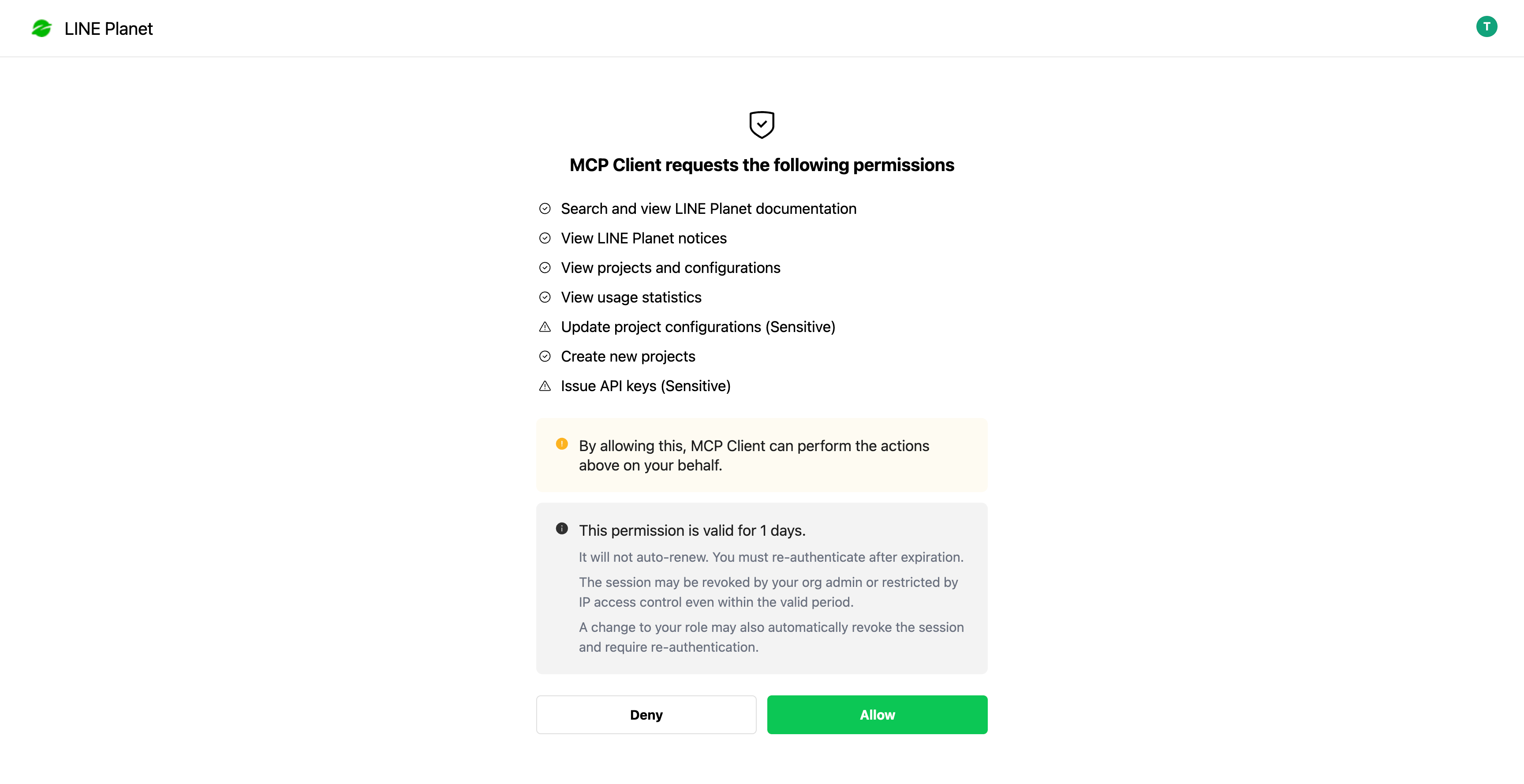
- On the consent screen, review the requested permissions.
- Select Allow to allow access, or Deny to deny it.
- Return to your AI client and continue the task.
The consent screen shows the permissions requested by the AI client. Even if MCP access is allowed for your organization, users can perform only the operations allowed by their LINE Planet organization role and project role.
Run your first request
Use one of the following example prompts to confirm that the MCP server is connected successfully and ready to be used for actual work.
If you are already using LINE Planet
The following prompt asks the AI client to perform read-only operations such as checking documentation, listing projects, looking up callback URLs, looking up allowed CORS origins, and retrieving usage. You can use it when you run the AI client in a project directory that contains LINE Planet integration source code.
Review this source code and identify how it integrates with LINE Planet. Use LINE Planet MCP to check the relevant documentation, list the LINE Planet projects I can access, check the callback URL, CORS settings, and recent usage of the matching project, and then summarize the current integration status and areas for improvement.
If you are starting a new integration
The following prompt asks the AI client to start by checking the relevant documentation needed to begin LINE Planet development. If the AI client determines during the task that an API key is required, it can proceed to the API key issuance preparation step.
For API key issuance, the API secret is shown only once, so check it immediately and store it in a secure location.
I want to start developing with LINE Planet. Use LINE Planet MCP to find the relevant quick start and API reference, check the project available to my account, and tell me what I need to configure first. If development requires an API key, help me prepare to issue one.
What you can do with LINE Planet MCP
The following are examples of tasks you can perform after connecting to LINE Planet MCP.
- The following operations are applied to the project immediately. Before running them, carefully check the target project and the values that will be applied.
- Change callback URL settings
- Change allowed CORS origins
- Callback URL settings are partially updated at the field level. Fields not included in the update request keep their existing values. However, if the header list is included, the entire existing header list is replaced with the new headers. Make sure all headers that must be kept are included.
- When you change allowed CORS origins, the entire existing list is replaced with the new list. Even when adding only one origin, first check the current list, and then update it with a list that includes both the existing origins and the new origin.
| Task | Description | Permission note |
|---|---|---|
| Find LINE Planet documentation | Browse documentation such as guides, feature tables, getting started pages, and platform-specific sample code. | Available after MCP authentication |
| Search API references | Search APIs provided by platform-specific SDKs, including classes, methods, and enums. | Available after MCP authentication |
| Check notices | Search notices related to maintenance, updates, and incidents. | Available after MCP authentication |
| Check project list | Find projects accessible with the user's account and identify the target project to work with. | Requires project read permission |
| Check callback URL settings | Check the callback method, headers, and callback URLs of a project. | Requires project read permission |
| Change callback URL settings | Change the callback settings of a project. | Requires project configuration permission; changes are applied to the project |
| Check allowed CORS origins | Check the allowed origins of a project. | Requires project read permission |
| Change allowed CORS origins | Replace the allowed origin list of a project. | Requires project configuration permission; changes are applied to the project |
| Retrieve usage | Summarize usage metrics for a project. | Requires usage read permission |
| Create an Evaluation environment project | Create a project for evaluation and integration testing. | Requires project creation permission |
| Issue an API key | Create the credentials required for development. | Requires API key permission; the API secret is shown only once |
Troubleshooting
| Problem | What to check |
|---|---|
| The MCP server is registered, but authentication does not start | Try entering a LINE Planet-related question. If the browser does not open automatically in Codex, run the codex mcp login lineplanet_mcp --oauth-client-registration dcr command. |
| Authentication succeeds, but LINE Planet MCP tools are not visible | Restart the AI client or start a new session. Some clients load the MCP tool list when a session starts. |
| Documentation lookup works, but project lookup fails | Check whether MCP access is allowed for the organization and whether the account has project read permission. |
| Project settings can be viewed, but changes fail | Check whether you have project configuration permission for the target project. |
| Usage lookup fails | Check whether you have usage read permission for the target project. |
| Access fails only from a specific network | Ask the organization administrator to check the MCP IP allowlist settings. |
| Access status changed after a role or membership change | Authenticate again. Existing MCP sessions may be revoked when the set of allowed permissions changes. |
LINE Planet MCP permissions and access control
LINE Planet MCP follows LINE Planet Console permissions. Allowing MCP access at the organization level only allows users to connect through LINE Planet MCP. It does not grant additional project permissions. Users can perform only the operations allowed by their existing organization role and project role.
Some features, such as documentation search and notice lookup, may be available even when project permissions are limited. By contrast, project list, project settings, usage, project creation, and API key issuance each require the corresponding LINE Planet Console permission.
LINE Planet MCP authentication expiration
LINE Planet MCP authentication has an expiration period. The expiration period differs depending on the scope of authorized permissions. When multiple permissions are authorized together, the shortest expiration period applies. When the expiration period expires, you must authenticate again from your AI client.
| Authorized permission | Expiration period |
|---|---|
| Read-only permissions such as documentation, notices, project read, and usage read | 30 days |
| Includes callback URL changes, allowed CORS origin changes, and Evaluation environment project creation permission | 7 days |
| Includes API key issuance permission | 3 days |
Manage LINE Planet MCP access in LINE Planet Console
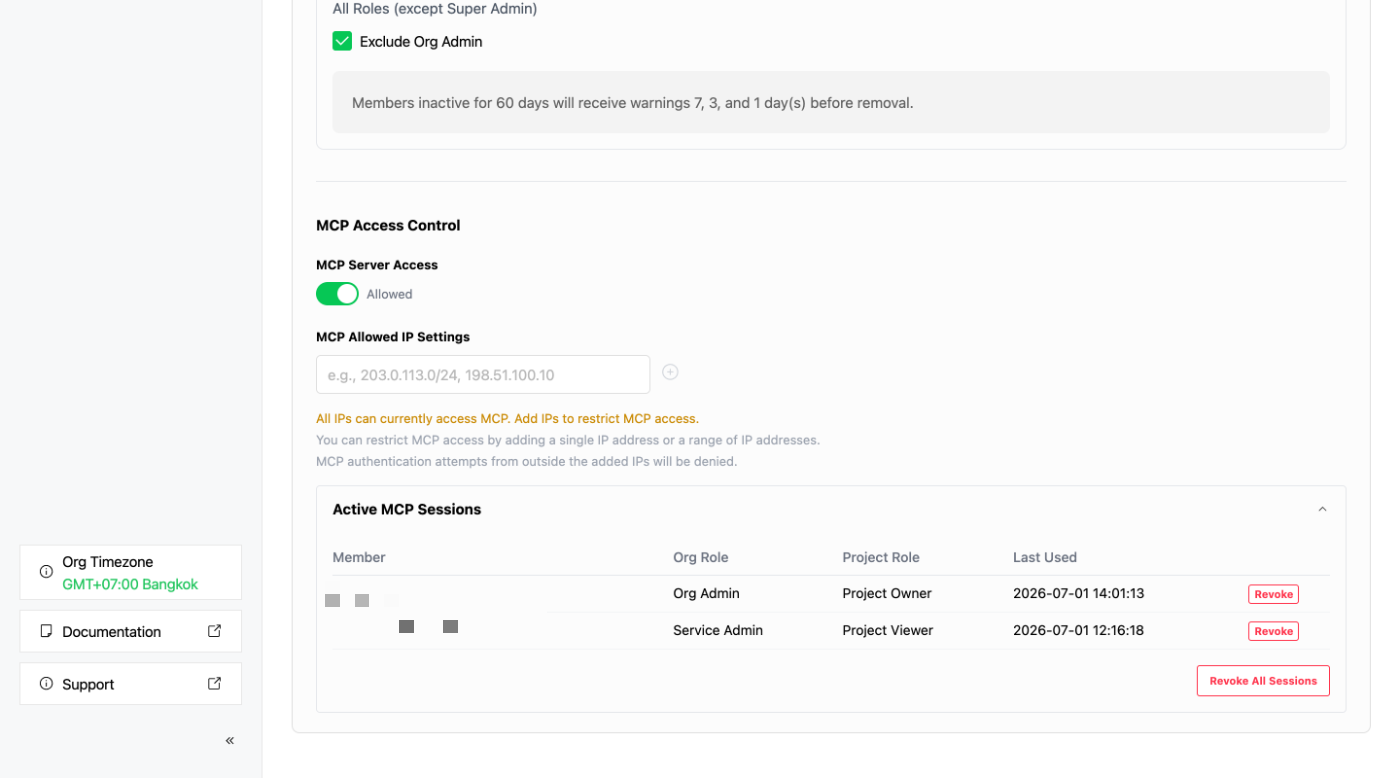
Organization administrators can manage MCP access in Org. Admin > Security in LINE Planet Console. They can perform the following operations:
- Allow or block MCP access for the organization
- Add IPv4 addresses or CIDR (Classless Inter-Domain Routing) ranges to allow MCP access
- View active MCP sessions
- Revoke the MCP session of a specific member
- Revoke all MCP sessions in the organization
- Blocking MCP access blocks new MCP authentication and revokes active MCP sessions.
- If a user's role or project membership changes, the set of available permissions may change, and the user may need to authenticate again.